
support@pattrac.info
This lesson describes how to create reoccuring appointments for clients.
Create a new Reoccuring Appointment record
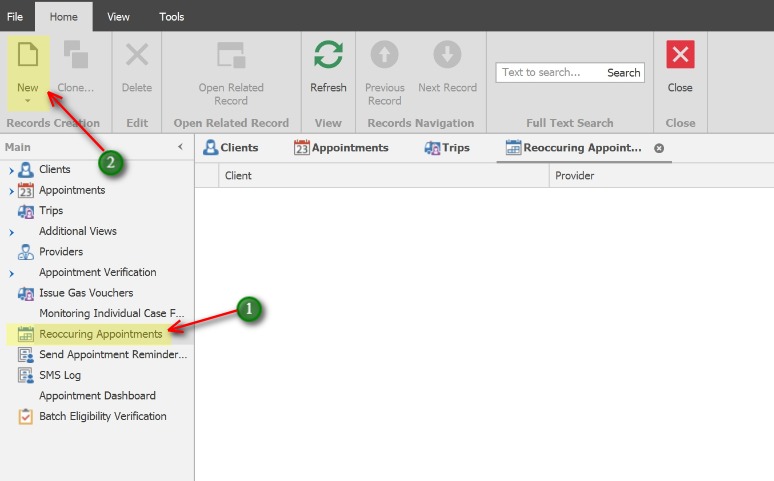
1. In the left Navigation panel, click Reoccuring Appointments to open the Reoccuring Appointments tab.
2. Click the New icon to create a new reoccuring appointment record.
Create the Appointments
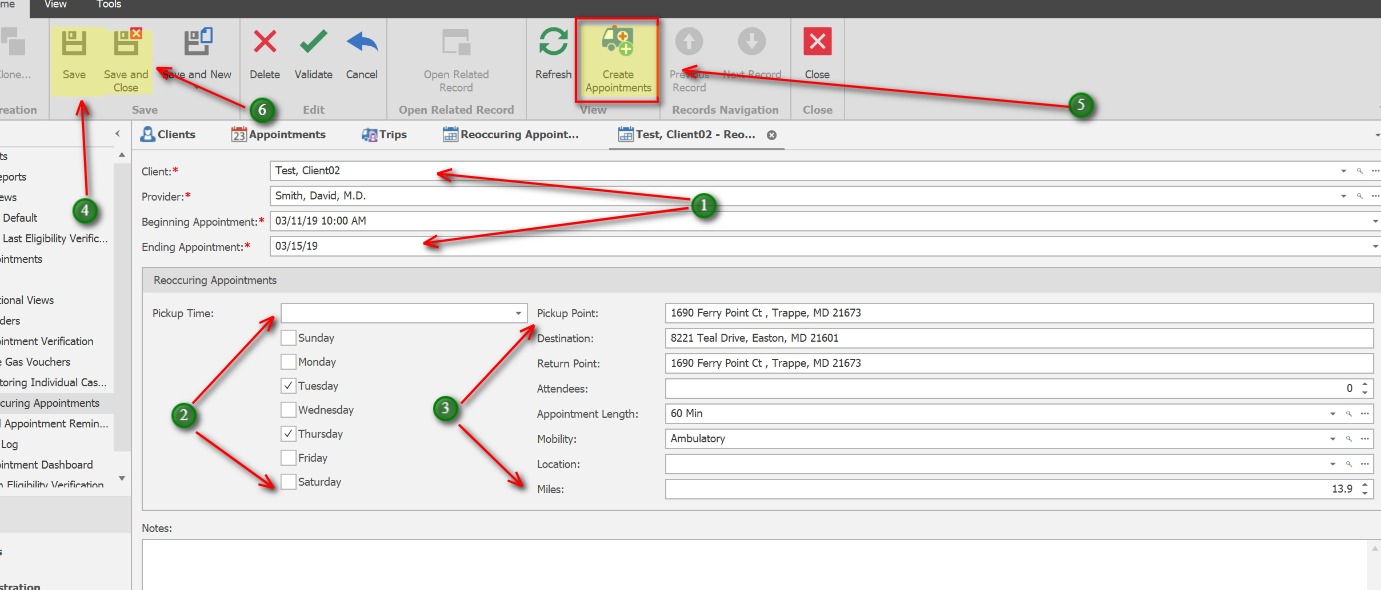
1. Enter the Client, Provider and the Beginning and Ending Appointment date range.
2. If appliable, enter a Pick-up time. Check the boxes for the days of the week for which the appointments are needed. (Appointments are made on days of the week where the boxes are checked)
3. Pickup Point, Destination and Return Point will populate automatically. Update Attendees, Appointment Length, Mobility and Location if applicable. Miles will populate after Saving.
4. Save the Appointment
5. After Saving, Click the Create Appointments button. Click Yes to the confirmation prompt.
Once the Appointments have been created, a message will display indicating the appointments have been created. This could take up to several minutes depending on the date range and the number of appointments being created.
6. Click Save and Close to exit the tab.