
support@pattrac.info
This lesson describes how to add a new appointment for a client.
Open the Client Record
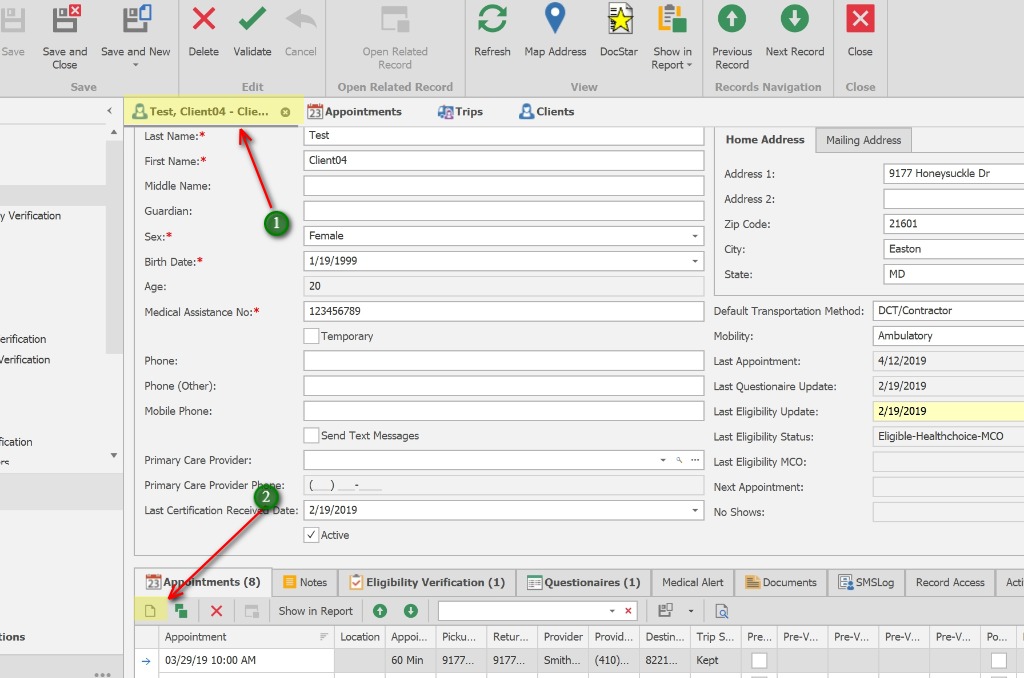
1. Open the Client record
2. On the Appointments tab, click the ‘New icon’ to add a new appointment.
Create the Appointment
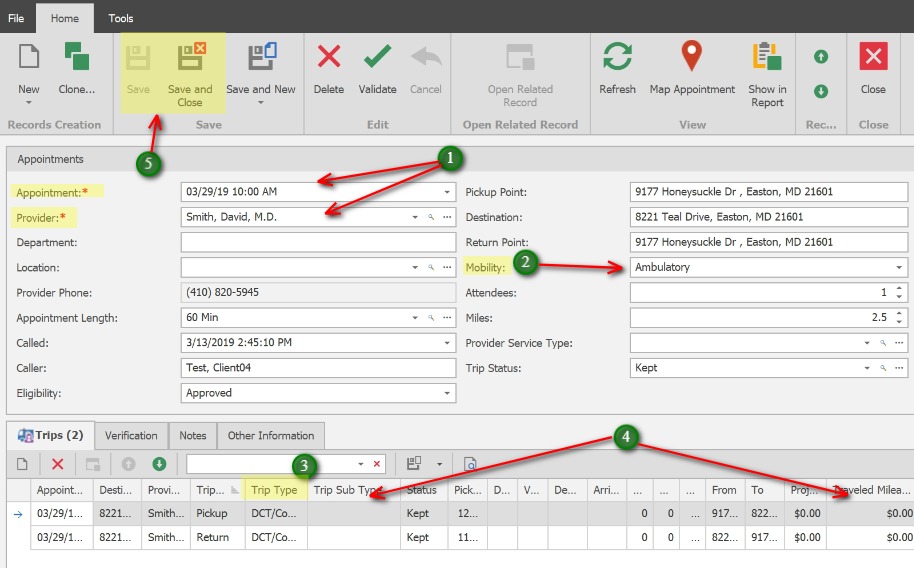
1. Select the Appointment Date, Time and Provider, and any other applicable fields for the appointment.
2. Mobility – This will automatically populate based on the Client’s Mobility (see Mobility field in the Client record)
3. Trip Type – This will automatically populate based on the Client’s Default Transportation Method (See Default Transportation Method field in the Client record).
**If the Client’s default transportation Method is blank, the agency’s default Trip Type will populate – See Administration > Trip Types
4. If applicable, update Information in the Trip records. i.e. Pick-up time, Driver, Vehicle, etc.
5. Once complete, select Save to simply save the appointment, or Save and Close to save the appointment and close the appointment window, or Save and New to Save the Appointment and create another appointment for the same client.
Print the Trip Slip/Ticket
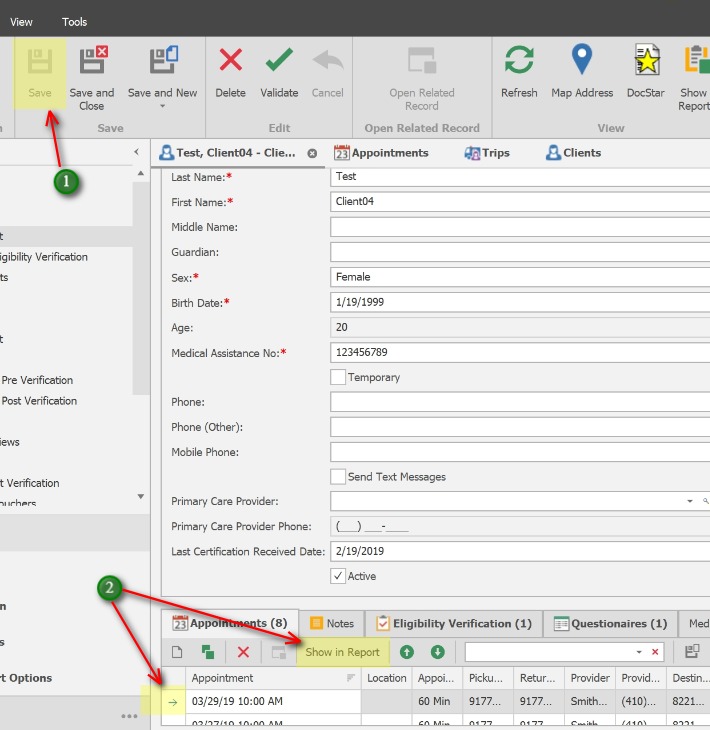
1. After closing the Appointment window, click the Save button on the Client screen.
2. Select/highlight the Appointment to Print, click the Show in Report button and print the Trip Ticket.