
This will guide you through creating an Export of the Trip Information for a specific date range.
Create a New Trip Export

1. Select Import/Export Options from the Navigation Bar.
2. Select Export from the Menu.
3. Select the New button on the Ribbon Bar.
4. Select the Type from the drop-down.
Select the Type of Export
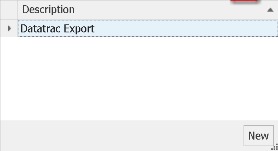
The selection you will make depend on what has been configured for your agency’s requirements.
Range of Trips to Export
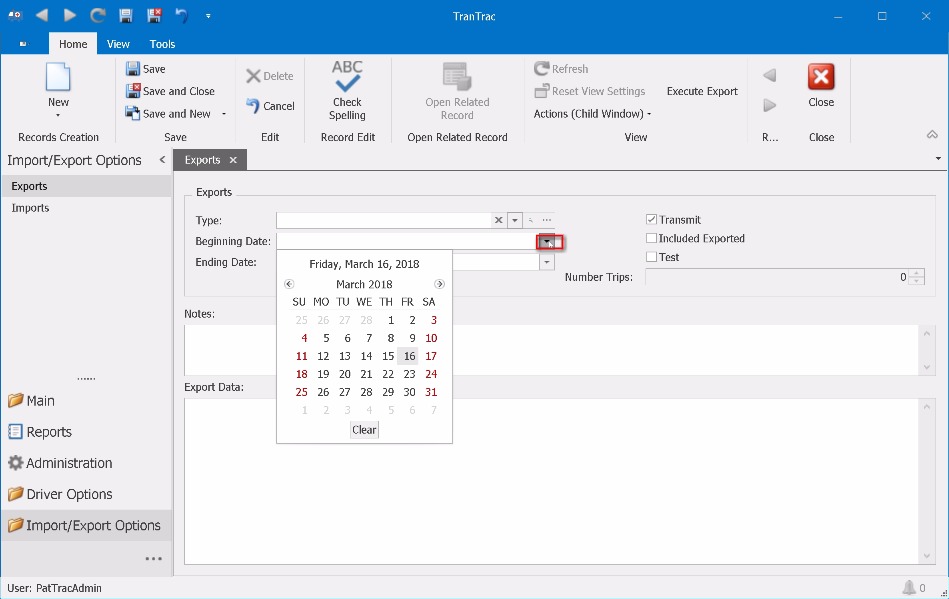
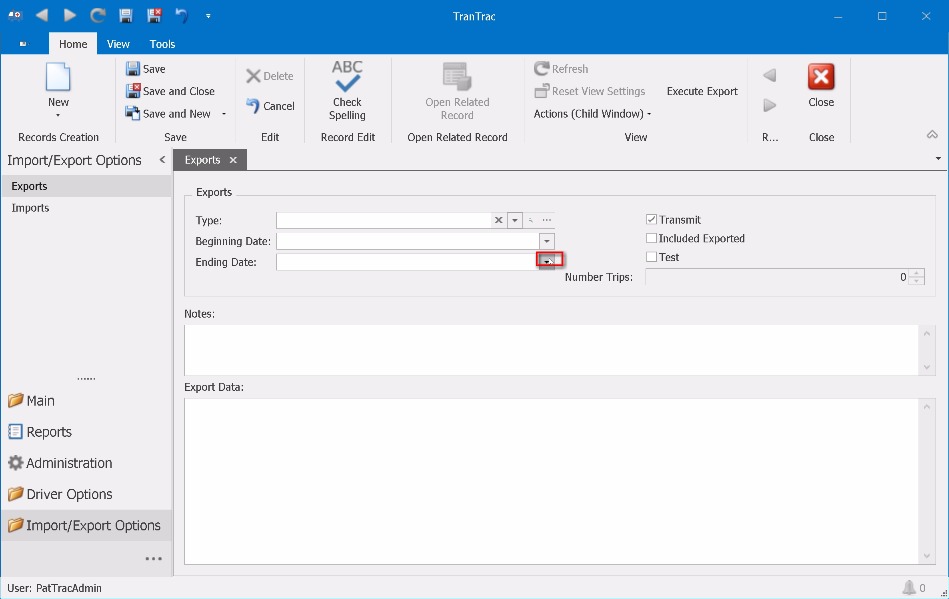
1. Enter the Beginning Date of the Trips you wish to Export.
2. Enter the Ending Date of the Trips you wish to Export.
Each export with require Beginning and Ending Date range.
Click on “Friday, March 16, 2018” pane
Select Export Options
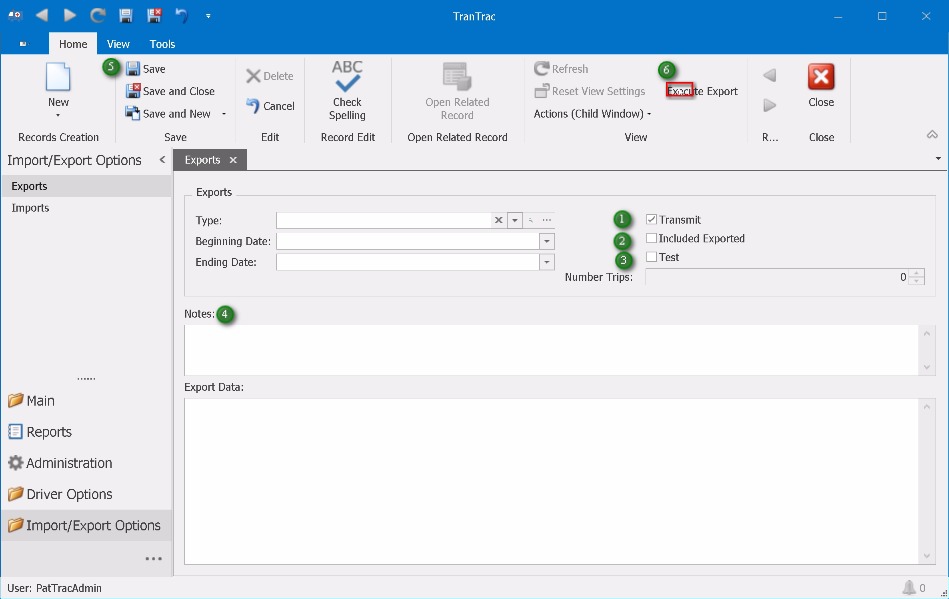
1. Check the Transmit checkbox to have the file automatically sent.
2. Check the Include Exported checkbox to include those Trips that were previously Exported.
3. Check the Test checkbox to prevent the routine from flagging the Trips as Exported.
4. Type in any Notes you may want to include for historical purposes.
5. Save the Export by clicking the Save button on the RibbonBar.
6. Click the Execute Export on the RibbonBar to create the properly formatted Trips.