
(301) 900-6114 support@pattrac.info
Select Page

support@pattrac.info

This lesson describes how to update the Trip Status in an appointment.

Update Multiple Trips
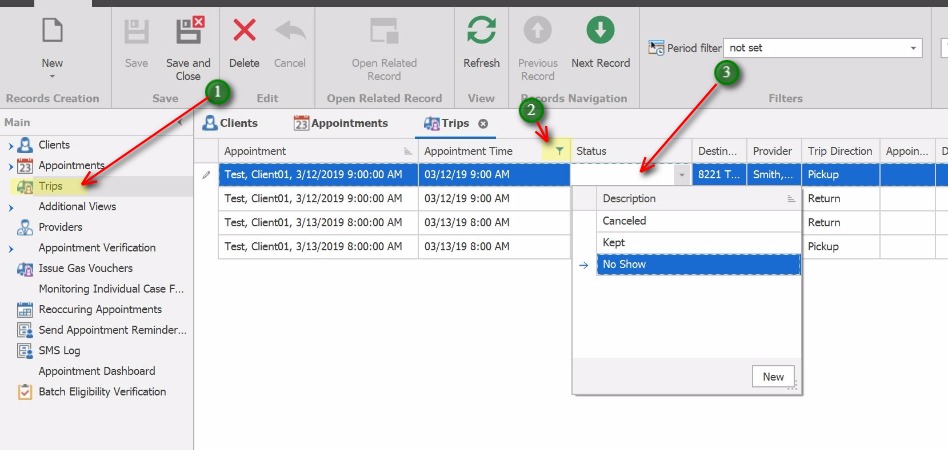
Update Multiple Trips;This option allows for updating multiple trips, for multiple clients in the Trips List View
            1. Open Trips in the left Navigation panel.
            2. Use the Filter button to select the range of appointments to update. i.e. Last Week, Last Month, etc.
            3. Click twice into the Status field (a double-click will open the trip record where the status can also be updated).  Select the Status.

This option allows for updating multiple trips, for multiple clients in the Trips List View

1. Open Trips in the left Navigation panel.

2. Use the Filter button to select the range of appointments to update. i.e. Last Week, Last Month, etc.

3. Click twice into the Status field (a double-click will open the trip record where the status can also be updated).  Select the Status.

Save the Changes
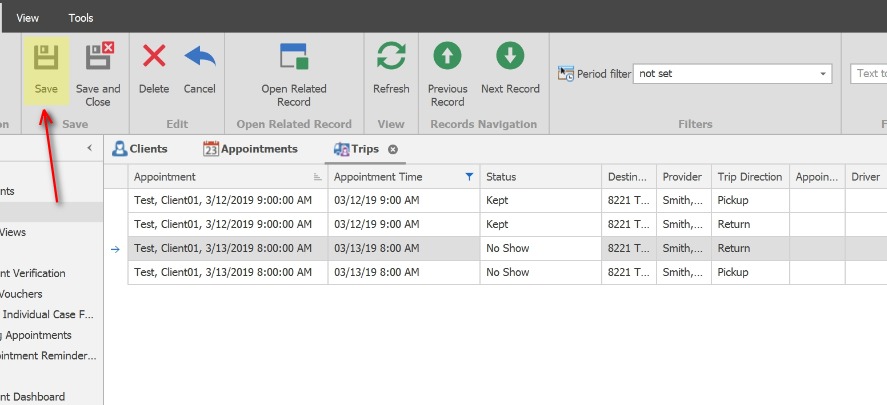
Save the Changes;After updating the Trip Status, click the Save button to save the changes made to multiple records.
            ** Like any application, saving often is advised especially when updating several records.

After updating the Trip Status, click the Save button to save the changes made to multiple records.

** Like any application, saving often is advised especially when updating several records.

;Updating the Trip Status automatically updates the Appointment Status.

Updating the Trip Status automatically updates the Appointment Status.

Update the Status for an Individual Appointment
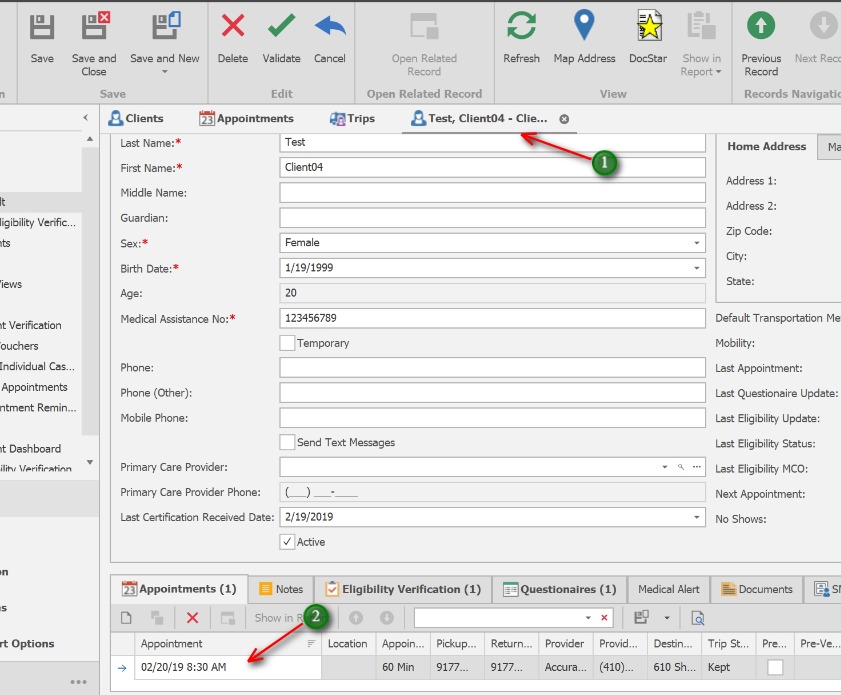
Update the Status for an Individual Appointment;1. Open the Client screen
            2. Open/double-click the Appointment to update

1. Open the Client screen

2. Open/double-click the Appointment to update

Update the Trip records
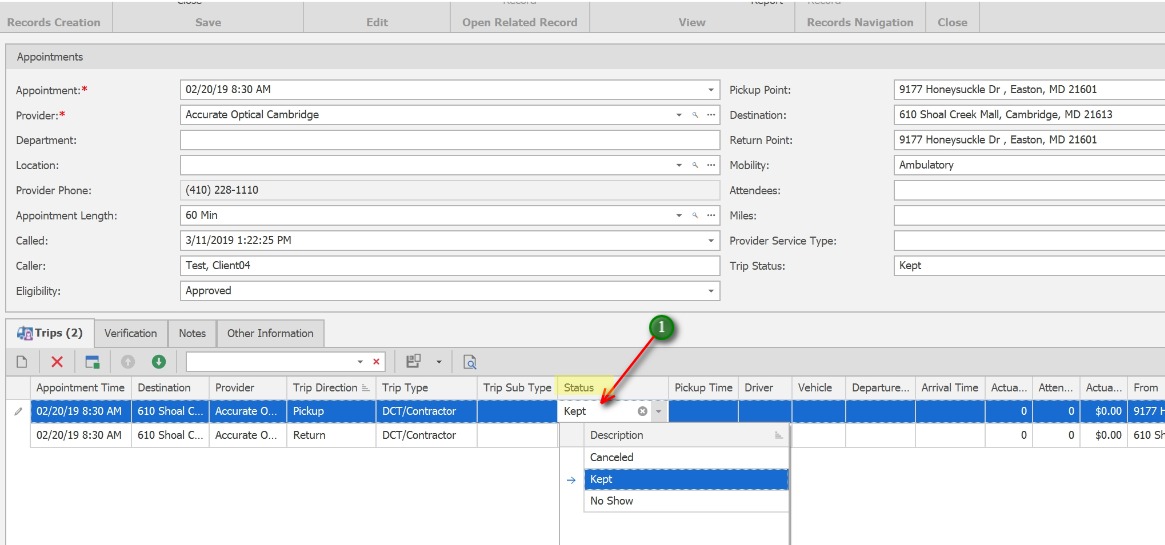
Update the Trip records;1. Click twice in the Status column to update each trip leg with the appropriate option.
            (Double-clicking the trip record will open the record, the status can also be updated here)
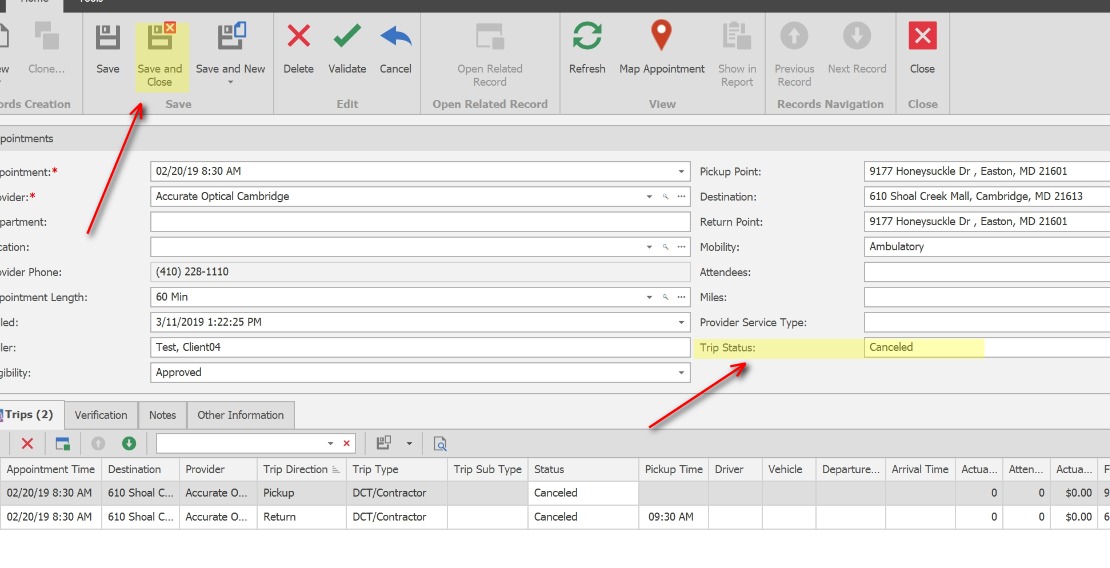
1. Click twice in the Status column to update each trip leg with the appropriate option.

(Double-clicking the trip record will open the record, the status can also be updated here)

;After updating the Status in the Trip records, the Appointment Trip Status will automatically update.
            1. Click Save and Close to exit the Appointment screen.

After updating the Status in the Trip records, the Appointment Trip Status will automatically update.

1. Click Save and Close to exit the Appointment screen.